
WordPress
Add the square badge in about 10 minutes
Before you start
- About 10 minutes
- Your WordPress username and password
- We recommend the square badge (logo + “Compare The Dentist” text)
Open this guide from the practice dashboard
We can then show your unique address (it includes ?ref=), which tracks clicks to your listing. A clickable link to https://comparethedentists.com/ is what we check — the picture on its own does not count.

Step 1
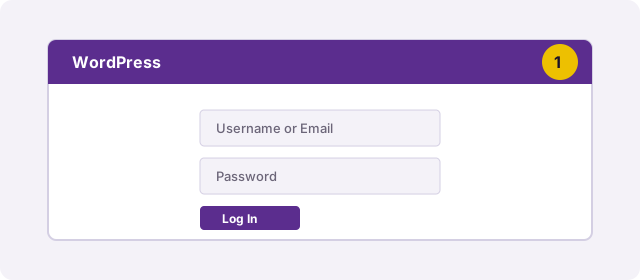
Log in to WordPress
Open your practice website’s WordPress admin (often yoursite.co.uk/wp-admin) and sign in with the usual username and password.
Step 2
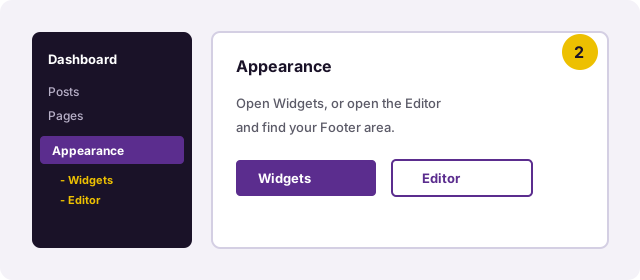
Open Appearance
In the left-hand menu, click Appearance. Then open Widgets, or open the Editor and find the Footer area. Different themes use slightly different names — look for anything that says Footer.
Step 3
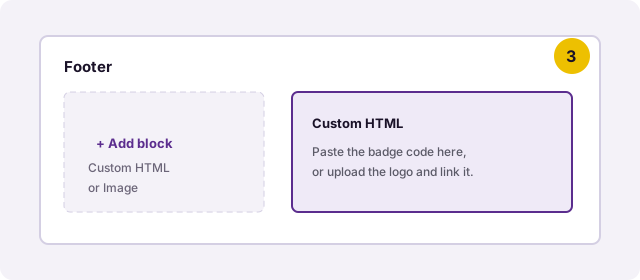
Add the square badge to your footer
In the footer, click Add block. Choose Custom HTML and paste the code from the yellow box below — that already includes your unique https:// link. If you upload the PNG instead, click the image afterwards and paste the address from the yellow box as the link. The picture alone, with no link, will not pass our check.
Step 4
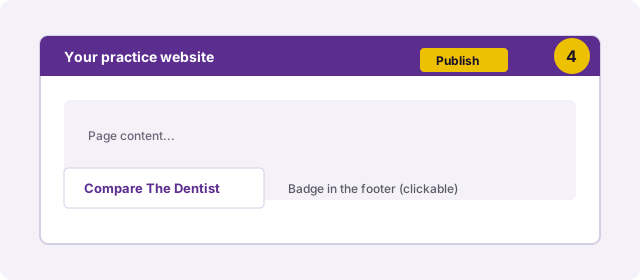
Publish and check your live site
Click Publish or Update. Open your practice website in a new tab, scroll to the footer, and click the badge. It should open Compare The Dentist — not just show the picture.
Easiest option: paste this code
If your WordPress looks different to the pictures, add a Custom HTML block in the footer and paste this as it is (it already includes https://).
How we’ll check
We look at your live homepage for a clickable link to Compare The Dentist. A badge image with no URL around it is not enough. A link to https://comparethedentists.com/ is fine; the unique address with ?ref= is better for tracking.
Optional
AI discovery file (llms.txt)
This will help you by making it easier for AI tools (ChatGPT and similar) to find your Compare The Dentist listing, alongside the badge on your site. It’s a small text file only — optional; the badge alone is enough for your claim.
- Download
llms.txtbelow (or copy the text). - Serve it at the site root so
https://yoursite.co.uk/llms.txtreturnstext/plain. - On WordPress: use a file-manager plugin, or ask hosting support to place the file in your site’s public root folder (often
public_html).
Or copy the file contents
Stuck?
Forward the IT pack to your web person, or contact us and we’ll walk you through it.